
Below is a guide on capturing a single element using Clicknium, Clicknium offers three recording methods: single capture, continuous capture, and image capture.
1. How to start recorder #
To start recording, you can either start from Visual Studio Code ‘LOCATORS’ tab, start capture in Visual Studio Code ‘CLOUD LOCATORS’ tab, or press the hotkey ‘Ctrl+F10‘.
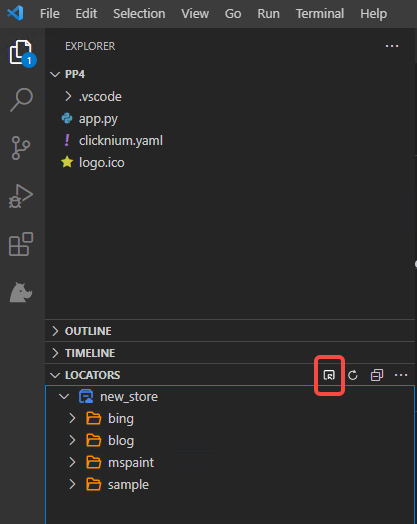

2. Capture methods #
Clicknium provides three recording methods:
- single capture
- continuous capture
- image capture.
Remarks: The new recorded locator will be added into current selected locator store.
(1). Single capture #
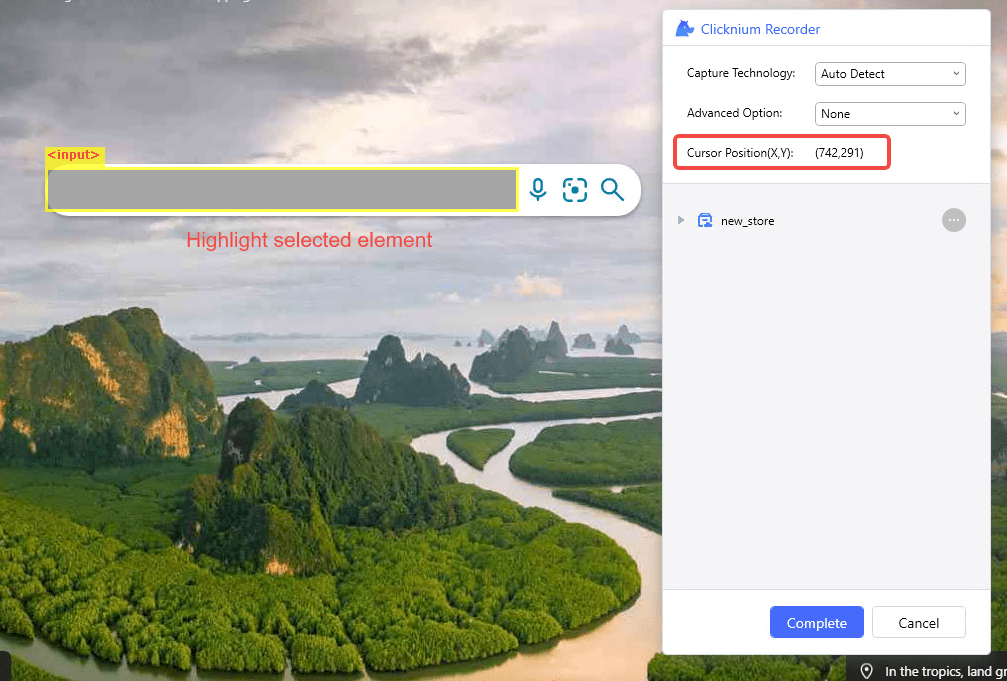
For single capture, follow these steps:
- Select the UI element you want to capture.
- While moving the mouse, the UI element will be highlighted, and its position will be displayed on the recorder panel.
- Press ‘
Ctrl+click‘. - Click the ‘Complete’ button.
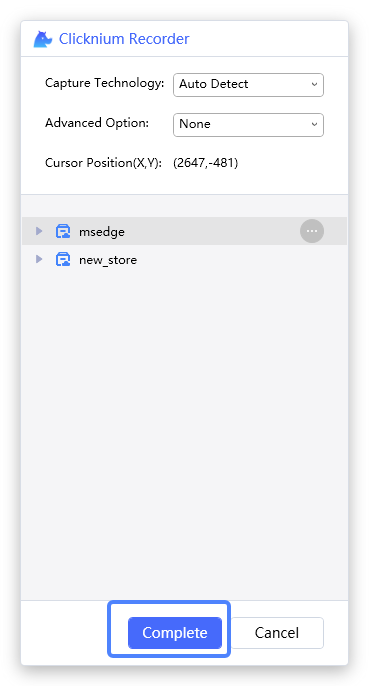
(2). Continuous capture #
To use continuous capture, follow these steps:
- Select the UI element you want to capture.
- Keep selecting UI elements by pressing ‘
Ctrl + click‘. - Click the ‘Complete’ button on the recorder panel.
(3). Image capture #
To use image capture, follow these steps:
- Select the UI element you want to capture.
- Press ‘
Shift‘ and select an area of the element with the mouse. - Validate image locators as below:
- Click the ‘Complete’ button on the recorder panel.

To select capture technology and advanced options, refer to the Capture Technology and Capture Advanced Option sections.
3. Capture technology #
- The supported capture technologies include
UIA,IA,Java,IE,Chrome,Firefox,Edge, andSAP. The default technology isAuto Detect, which means the recorder will automatically select the technology. - For web UI elements, you can choose
IE,Chrome,Firefox, orEdgecapture technology based on your browser type. - For SAP applications, you can select the
SAPcapture technology. - For Java applications, select
Javacapture technology. - For window UI elements, you can choose
UIAorIAcapture technology.

4. Advanced option #
The default option for advanced capture is None. When recording web UI elements, you can also select XPath to generate an XPath string.


